GUI는 Graphical User Interface의 약자.
pc에 설치해서 실행하는 프로그램형태
Tkinter 파이썬을 깔면 기본으로 들어있는 라이브러리. 간단한 도구나 개인용 프로그램을 만들때 좋다 .디자인이 다소 투박하고 복잡한 기능을 구현하기엔 한계가 있다. "나 혼자 쓸 가벼운 도구만들기"
https://docs.python.org/3/library/tkinter.html
tkinter — Python interface to Tcl/Tk
Source code: Lib/tkinter/__init__.py The tkinter package (“Tk interface”) is the standard Python interface to the Tcl/Tk GUI toolkit. Both Tk and tkinter are available on most Unix platforms, inclu...
docs.python.org
PyQt / PySide Qt라는 C++ 프레임워크를 파이썬에서 쓸수있게 만든것으로 거의 같고 라이선스 정책만 다르다. 현업에서 가장 많이 쓰이며 디자인이 세련됬고 Qt Designer라는 툴로 드래그 앤 드롭 방식의 화면 설계가 가능하다. 다만 공부할 양이 많고 상업적 이용시 라이선스 비용이 발생할 수 있다. "회사에서 쓸만한 전문적인 PC프로그램"
https://www.riverbankcomputing.com/software/pyqt/
Riverbank Computing | Introduction
What is PyQt? PyQt is a set of Python bindings for The Qt Company's Qt application framework. The bindings are implemented as a set of Python modules and contain over 1,000 classes. PyQt6 supports Qt6 and runs on Windows (Intel and ARM), macOS (Intel and A
www.riverbankcomputing.com
https://www.qt.io/development/qt-framework/python-bindings
Qt for Python (PySide6) | Official Python Bindings
The official Qt set of Python bindings and a binding generator. No need to know C++. Take a shortcut to cross-platform development for UI and middleware.
www.qt.io
wxPython 실행되는 운영체제 기본 UI 스타일을 그대로 따라 이질감이 없다. PyQt에 비해 커뮤니티가 작아 정보를 찾기가 조금 어렵다.
Welcome to wxPython!
All about wxPython, the cross-platform GUI toolkit for the Python language
wxpython.org
Kivy 스마트폰 앱이나 키오스크처럼 터치 인터페이스에 특화되어있다. 하나의 코드로 Window, Android, iOS까지 모두 대응할 수 있다. 일반적인 윈도우 ㅍ로그램과는 조작 방식이 조금 달라 적응이 필요하다.
https://kivy.org/
Kivy: Cross-platform Python Framework for NUI
Open source Python framework for rapid development of applications that make use of innovative user interfaces, such as multi-touch apps.
kivy.org
브라우저에서 실행되는 프로그램 형태
Streamlit 데이터 과학자들을 위해 만들어진 도구며 코드가 정말 간단해 st.write() 하나면 표, 그래프가 뚝딱 나와 대시보드 만들때 좋다. 페이지의 자유로운 레이아웃 변경이 어렵고 정해진 틀 안에서만 움직여야 한다. "내가 만든 데이터 분석 결과를 남들에게 공유하기"
Gradio 인공지능 모델의 입출력을 확인하는데 특화되어있는 Hugging Face에서 인수한 도구다. 이미지 업로드 -> AI 처리 -> 결과보여주기 같은 흐름을 코드 몇 줄로 끝내며 외부 공유용 링크를 아주 쉽게 만들어주지만 일반적인 웹 서비스나 복잡한 사이트를 만들기에는 기능이 부족하다. "AI 모델의 성능 테스트하기"
Gradio
Build & Share Delightful Machine Learning Apps
www.gradio.app
Dash 기업용 고성능 차트로 Plotly라는 유명한 차트 라이브러리 기반으로 만들어졌다. Streamlit보다 훨씬 정교하고 복잡한 데이터 시가고하가 가능하여 기업용 분석 툴을 만들때 유리하다. Flask(웹프레임워크)기반이라 배우기가 조금 더 어렵다.
Dash Documentation & User Guide | Plotly
dash.plotly.com
Flask / Django + HTML/CSS/JS
위 도구들이 파이썬만으로 해결하는 방식이라면 Flask나 Django는 실제 네이버 인스타그램 같은 진짜 웹서비스를 만드는 정공법으로 백엔드와 프론트엔드를 명확히 나누어 협업하고 배포하는 구조다. Flask / Django는 데이터베이스에서 정보를 가져오고 사용자 로그인 회원가입 처리 및 복잡한 비즈니스 로직을 계산하고 HTML/CSS/JS는 웹페이지의 뼈대, 디자인, 움직임을 구현한다.
Flask 는 아주 가볍고 자유로워 꼭 필요한 기능만 들어있고 나머지는 내가 골라 조립해야한다. 공부하기 매우 좋고 구조가 단순해 가벼운 서비스를 빠르게 만들때 유리하나 서비스가 커지만 관리해야 할 설정들이 많아져서 나만의 커스텀 지옥에 빠질 수 있다 .
https://flask.palletsprojects.com/
Django 풀스택 프레임워크로 회원가임, 로그인, 관리자페이지, 데이터베이스 연결들이 기본으로 들어있어 대규모 ㅍ로젝트에 강력하다. 처음에 배워야 할 규칙이 굉장히 많지만 내 마음대로 하기보다는 Django의 방식대로 코딩해야한다
https://www.djangoproject.com/
Django
The web framework for perfectionists with deadlines.
www.djangoproject.com
가상환경구축
python -m venv .venv
ls .\.venv\Scripts\
.\.venv\Scripts\Activate.ps1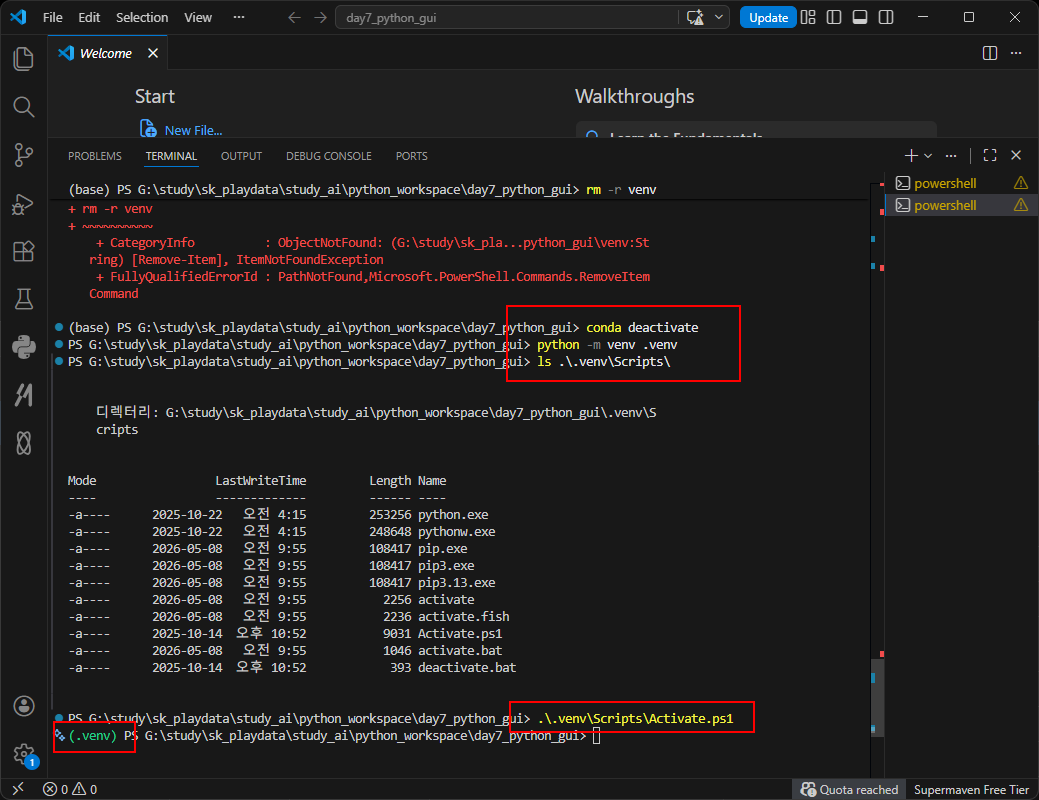
여러개 한번에 설치하기
pip install scikit-learn pillow numpy matplotlib pandas streamlit
https://standout.tistory.com/1686
Streamlit이란?
Streamlit는 Python만 사용하여 HTML/CSS 사용을 최소하하고빠른개발로 AI 데모 제작에 최적화되어있으며데이터와 AI에 친화적이기에 Pandas, Numpy연동, 및 OpenAI/LangChain 연동이 쉽고실시간 반응으로 입력
standout.tistory.com
https://standout.tistory.com/1687
Python 실무에서 자주 사용하는 라이브러리 조합
실무에서 자주 사용하는 라이브러리 조합은 다음과 같다. Pandas 데이터 처리https://pandas.pydata.org/?utm_source=chatgpt.com pandas - Python Data Analysis Librarypandas pandas is a fast, powerful, flexible and easy to use open sour
standout.tistory.com
app.py 코드작성
import streamlit as st

st.set_page_config(page_title="Sanghee", page_icon="📊", layout="wide")
st.title("Streamlit GUI 예제")
st.write("안녕하세요, 좋은아침이에요.")

name = st.text_input("이름을 입력해주세요.")
age = st.slider("나이를 입력해주세요.", 0, 100)

if st.button("전체 출력"):
    if name == "":
        st.write("이름을 입력해주세요.")
    elif age < 0:
        st.write("나이를 입력해주세요.")
    else:
        st.write(f"이름: {name}, 나이: {age}")
streamlit run app.py
첫 설치시 email 작성 form나올경우, enter눌러 건너뛰어도 무방함.

확인.

streamlit을 활용해서 자유롭게 예재를 구현했다.


import streamlit as st
import pandas as pd
import matplotlib.pyplot as plt

st.set_page_config(page_title="Sanghee", page_icon="📊", layout="wide")
plt.rcParams['font.family'] = "Malgun Gothic"
plt.rcParams['axes.unicode_minus'] = False

# st.image("https://cdn-icons-png.flaticon.com/512/3063/3063176.png", width=80)

st.markdown("""
    <style>
    div.stButton > button {
        background-color: #007BFF;
        color: white;
        border-radius: 8px;
    }
    div[data-testid="stSlider"],
    div[data-testid="stRadio"],
    div[data-testid="stTextInput"],
    div[data-testid="stSelectbox"],
    div[data-testid="stTextArea"]{
        display: flex;
        flex-direction: row;
        align-items: center;
        gap: 15px;
        margin-bottom: 10px;
    }
    div[data-testid="stSlider"] label,
    div[data-testid="stRadio"] label,
    div[data-testid="stTextInput"] label,
    div[data-testid="stSelectbox"] label,
    div[data-testid="stTextArea"] label{
        min-width: 70px;
        margin-bottom: 0 !important;
        font-weight: bold;
        white-space: nowrap;
    }
</style>
    """, unsafe_allow_html=True)

head_col1, head_col2 = st.columns([2, 3], gap="large")

with head_col1:
    st.markdown('<h1 style="font-size:70px;">📊</h1>', unsafe_allow_html=True)
    st.title("Streamlit GUI 예제")
    st.divider()

    row1 = st.container()
    row2 = st.container()

    with row1:
        st.subheader("Streamlit 입력 예제")
        inner_col1, inner_col2 = st.columns([1, 1], gap="small")

        with inner_col1:
            gender = st.radio("성별", ("남자", "여자"), horizontal=True)
            name = st.text_input("이름")
            country = st.selectbox("국가", ("한국", "중국", "유럽"))
        with inner_col2:

            python_score = st.slider("Python 점수", 0, 100)
            sql_score = st.slider("SQL 점수", 0, 100)
            ai_score = st.slider("AI 점수", 0, 100)

        text = st.text_area("메모", height=30)
        uploaded_file = st.file_uploader("CSV 파일 업로드", type=["csv"])

        if uploaded_file is not None:
            df = pd.read_csv(uploaded_file)
            st.success("파일 업로드 성공")
            st.write("### 데이터 미리보기")
            st.dataframe(df, use_container_width=True)
            st.write("### 기본 통계")
            st.write(df.describe())
        else:
            st.info("아직 파일이 업로드되지 않았습니다.")

        agree = st.checkbox("데이터활용에 동의합니다.")


    with row2:
        if st.button("학습 결과 분석"):
            if name.strip() == "":
                st.write("이름을 입력해주세요.")
            elif python_score < 0:
                st.write("Python 점수를 입력해주세요.")
            elif sql_score < 0:
                st.write("SQL 점수를 입력해주세요.")
            elif ai_score < 0:
                st.write("AI 점수를 입력해주세요.")
            elif agree == False:
                st.write("데이터활용에 동의해주세요.")
            elif country == "":
                st.write("국가를 입력해주세요.")
            else:
                scores = {
                    "과목": ["Python", "SQL", "AI"],
                    "점수": [python_score, sql_score, ai_score]
                }
                df = pd.DataFrame(scores)
                avg_score = df["점수"].mean()

                st.divider()

                st.subheader("1. 학습자 정보")
                st.write(f"이름: {name}")
                st.write(f"성별: {gender}")
                st.write(f"국가: {country}")
                st.write(f"메모: {text}")
                st.subheader("2. 학습 결과")
                st.write(f"평균 점수: {avg_score:.2f}")


with head_col2:
    row1 = st.container()
    row2 = st.container()

    df = pd.DataFrame({
        "과목": ["Python", "SQL", "AI"],
        "점수": [python_score, sql_score, ai_score]
    })

    with row1:
        st.subheader("학습 결과 상세 분석")
        inner_col1, inner_col2 = st.columns([1, 1], gap="small")
        inner_col1, inner_col2 = st.columns([1, 1], gap="small")

        with inner_col1:
            st.text("data 요약")
            st.write(df.describe())

        with inner_col2:
            st.text("data 시각화")
            st.dataframe(df, use_container_width=True)


    with row2:
        colors = ['#3898e7', '#8fe279', '#e53678']
        inner_col1, inner_col2 = st.columns([1, 1], gap="small")
        fig, ax = plt.subplots(figsize=(6, 2.5))

        ax.bar(df[df.columns[0]], df[df.columns[1]], color=colors)

        ax.set_title("matplotlib.pyplot subplots")
        ax.set_xlabel("subject")
        ax.set_ylabel("score")

        fig.patch.set_alpha(0.0)
        ax.patch.set_alpha(0.0)

        with inner_col1:
            st.text("data 컬러 정렬만 바꿔보기")
            st.pyplot(fig)

        with inner_col2:
            st.text("data 컬러 정렬만 바꿔보기")
            st.pyplot(fig)
css코드 추가하기
st.markdown("""
    <style>

     </style>
    """, unsafe_allow_html=True)
favicon 만들기
st.set_page_config(page_title="Sanghee", page_icon="📊", layout="wide")
가로선말들기
st.divider()
txt설정
plt.rcParams['font.family'] = "Malgun Gothic"
plt.rcParams['axes.unicode_minus'] = False
타이틀과 서브타이틀 txt
st.title("Streamlit GUI 예제")
st.subheader("Streamlit 입력 예제")

t.text("텍스트 출력")
마크다운으로 자유롭게 삽입하기
st.markdown('<h1 style="font-size:70px;">📊</h1>', unsafe_allow_html=True)
왼쪽 메뉴 영역 생성
st.sidebar.title("메뉴")
row 만들기
row1 = st.container()

row2 = st.container()
with row1:

with row2:
col 만들기
head_col1, head_col2 = st.columns([2, 3], gap="large")

    with head_col1:
    with head_col2  :
tab 만들기
tab1, tab2 = st.tabs(["회원", "게시판"])
확장패널만들기
with st.expander("상세정보"):
st.write("내용")
새로고침시 변수값이 초기화됨으로 유지하기위한 상태관리
Streamlit 은 새로고침 시 변수값이 초기화됩니다.
이를 유지하기 위해 사용:
if "count" not in st.session_state:
	st.session_state.count = 0
st.session_state.count += 1
form단위 입력, 여러개 데이터를 가져다 서버에게 보낼때
with st.form("login_form"):
	email = st.text_input("이메일")
	password = st.text_input(
		"비밀번호",
	type="password"
)
submit = st.form_submit_button("로그인")
form 만들기
name = st.text_input("이름")

age = st.number_input("나이")
gender = st.radio("성별", ("남자", "여자"), horizontal=True)
date = st.date_input("날짜 선택")
python_score = st.slider("Python 점수", 0, 100)
country = st.selectbox("국가", ("한국", "중국", "유럽"))
subjects = st.multiselect(
"과목 선택",
["Python", "AI", "DB"]
)
agree = st.checkbox("동의합니다")
job = st.selectbox(
"직업 선택",
["학생", "개발자", "강사"]
)
password = st.text_input(
"비밀번호",
type="password"
)if st.button("저장"):
st.write("저장 완료")
외
코드출력가능
code = """
print("hello")
"""
st.code(code, language="python")
파일
파일 업로드
uploaded_file = st.file_uploader(
"파일 업로드",
type=["csv"]
)

 다운로드 버튼
st.download_button(
label="다운로드",
data="hello",
file_name="test.txt"
)
이미지 비디오 오디오
st.image("test.png")
st.video("movie.mp4")
st.audio("music.mp3")
스크롤 가능 테이블
import pandas as pd
df = pd.DataFrame({
	"이름": ["홍길동", "김철수"],
	"점수": [90, 80]
})

st.dataframe(df)
정적테이블
st.table(df)
메트릭, 숫자 KPI(핵심 지표) 카드”를 만들어주는 컴포넌트
st.metric(
	label="총 사용자",
	value=120
)
그래프
st.line_chart(df)

st.bar_chart(df)

st.area_chart(df)
matplotlib 그래프
import matplotlib.pyplot as plt
fig, ax = plt.subplots()
ax.plot([1,2,3], [4,5,6])
st.pyplot(fig)
Stramlit Docs
Streamlit Docs
Join the community Streamlit is more than just a way to make data apps, it's also a community of creators that share their apps and ideas and help each other make their work better. Please come join us on the community forum. We love to hear your questions
docs.streamlit.io
chatbot을 만들어보자.

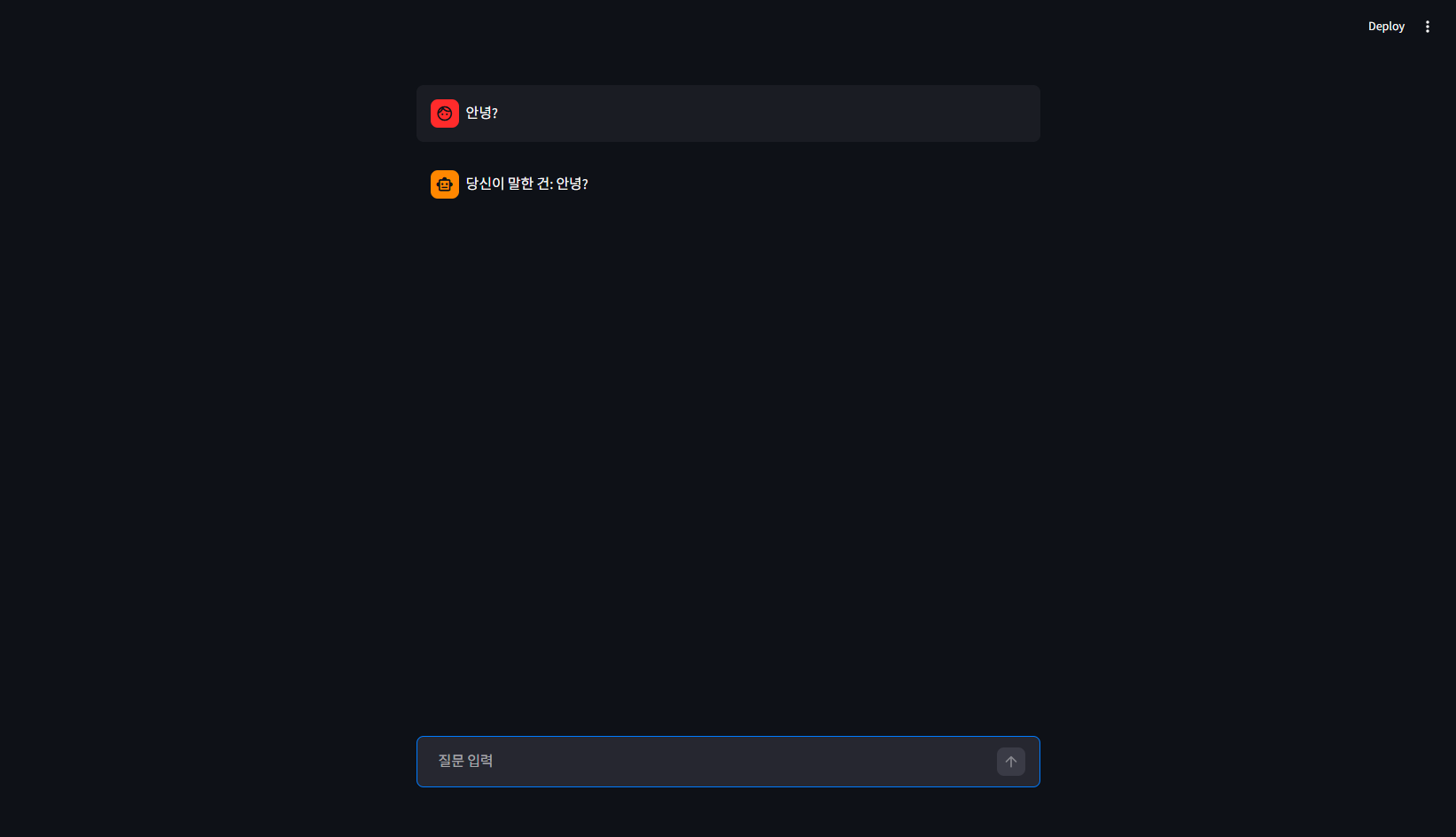

다음, 캐시를 이해해보자.
파이썬에는 @st.cache_data와 @st.cache_resource가 있다.
https://standout.tistory.com/1685
Python 파이썬에는 @st.cache_data와 @st.cache_resource: 왜 데이터와 리소스는 나누서 기억하는걸까?
다음, 캐시를 이해해보자.파이썬에는 @st.cache_data와 @st.cache_resource가 있다. 왜 데이터와 리소스는 나누서 기억하는걸까?데이터와 객체는 성격이 완전히 다르기 때문이다.@st.cache_data는 csv내용, api
standout.tistory.com
테스트해보자.

로딩 이 후 csv 로드가 시작되었다.
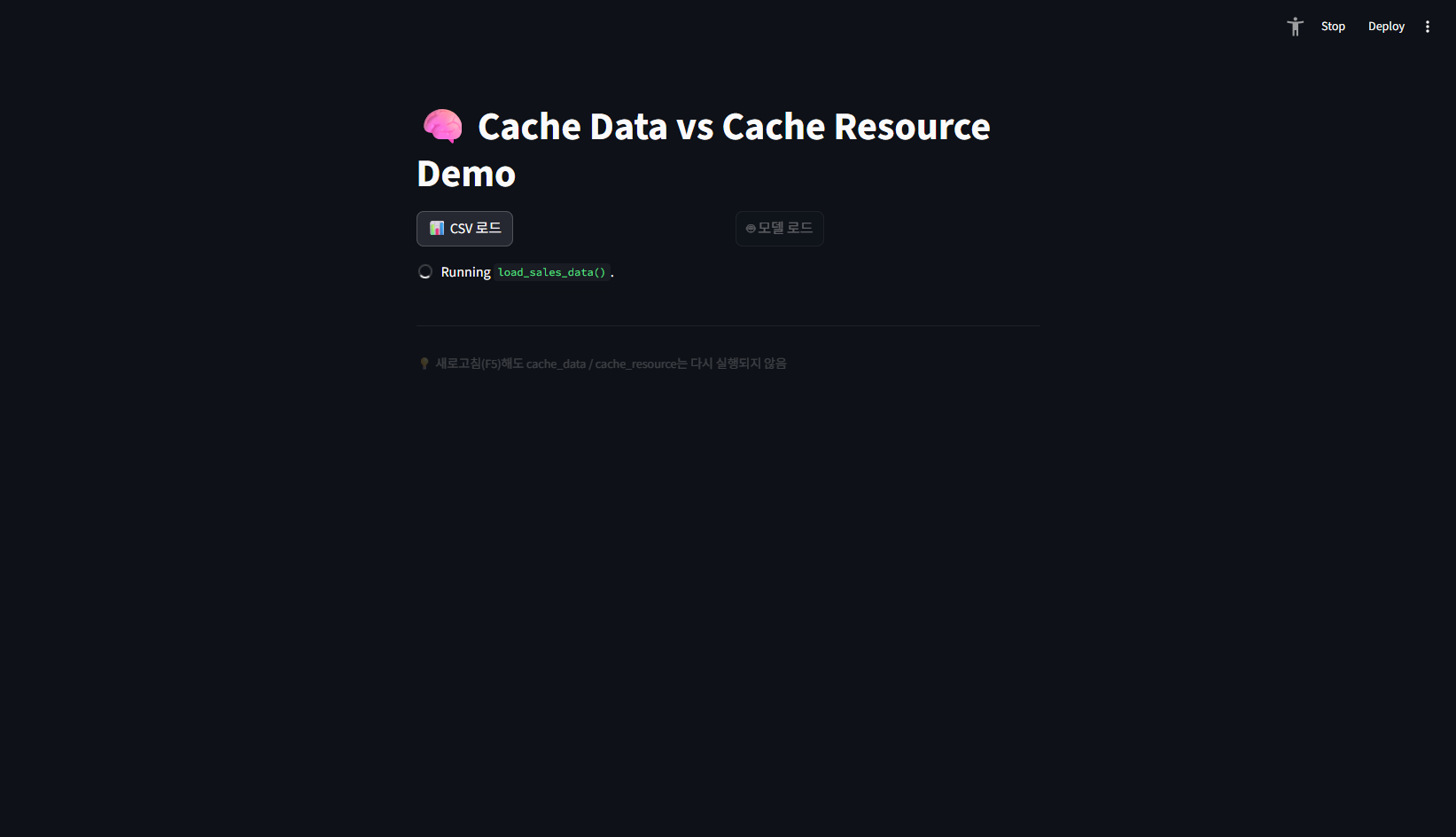

로딩 이 후 모델로드가 실행되었다.

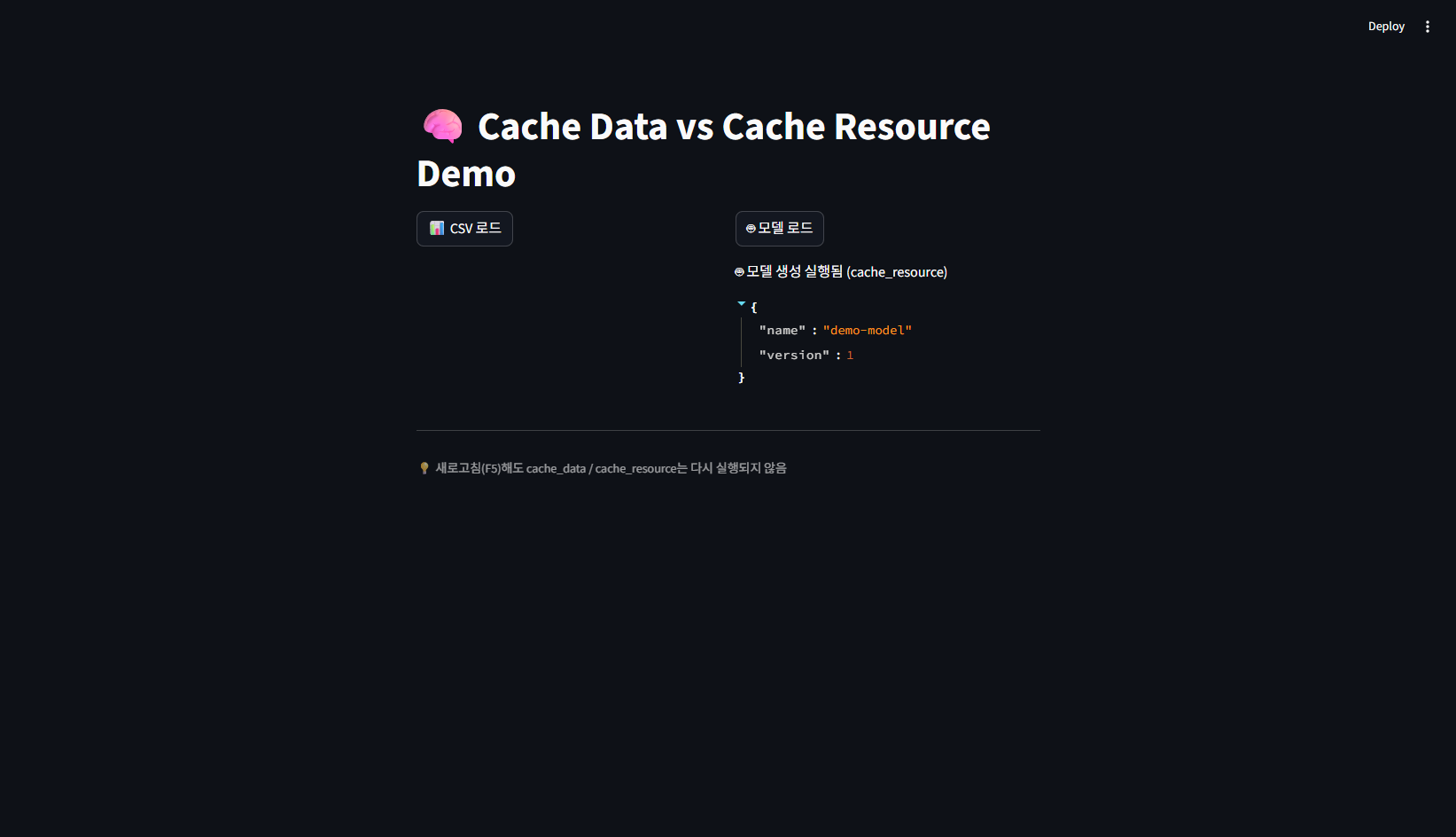
csv로드를 눌러보자, 이미 한번 캐시가 읽은 내용이라 바로 뜬다.
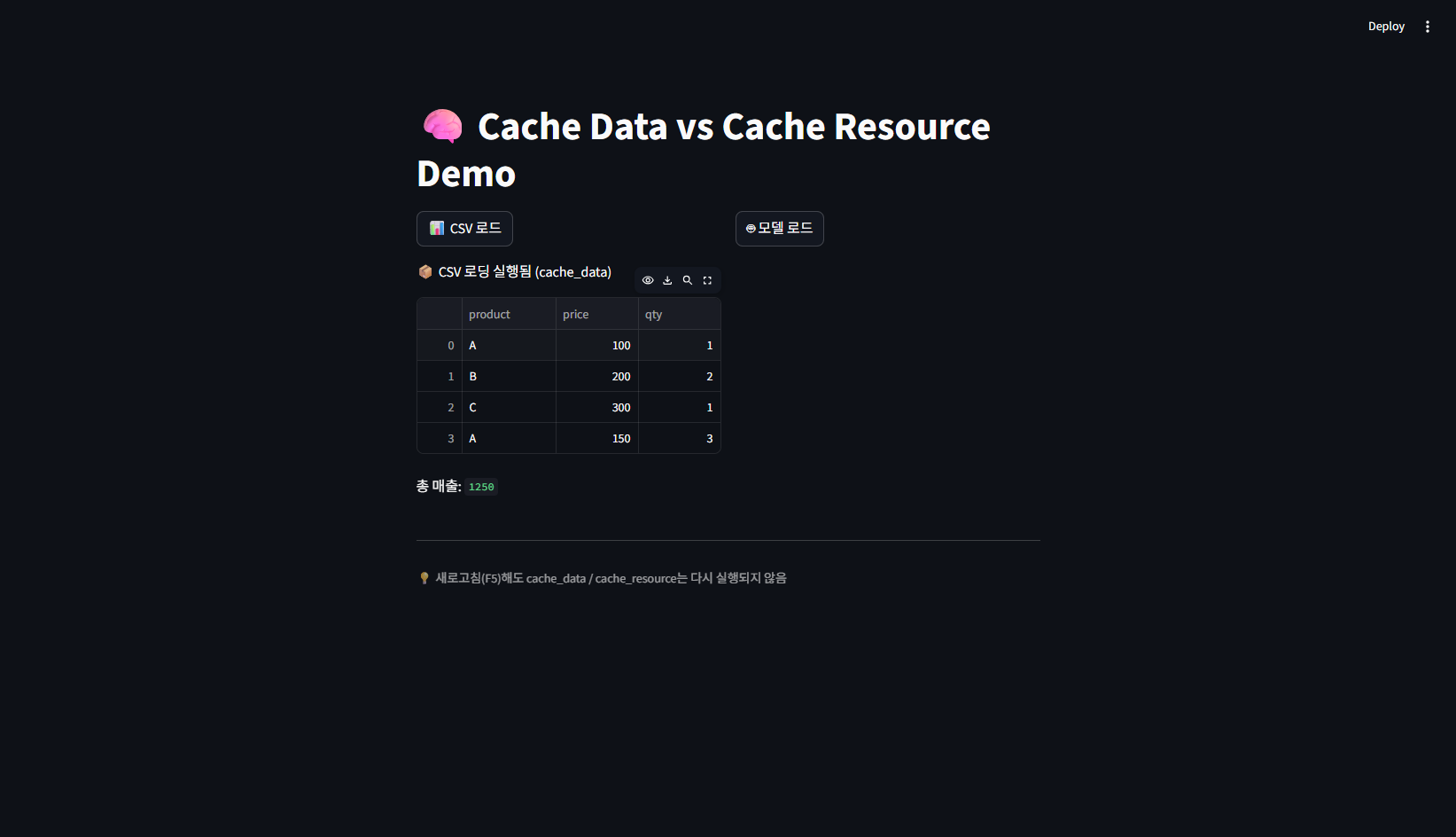
모델로드를 눌러보자 , 이미 한번 캐시가 읽은 내용이라 바로 뜬다.

새로고침해보자.
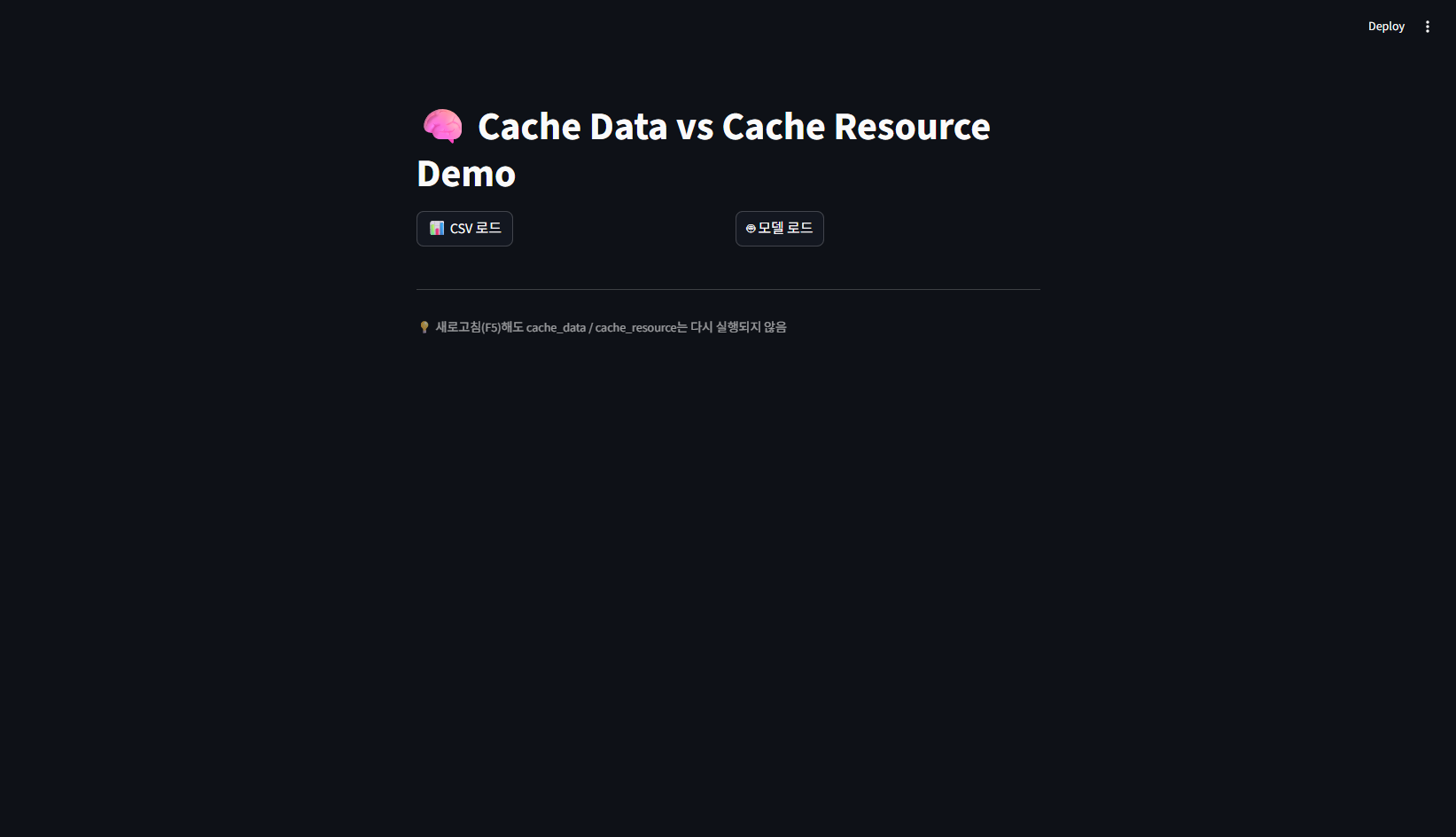
둘 모두 로딩 없이 바로 뜬다. 캐시 이해 완료.
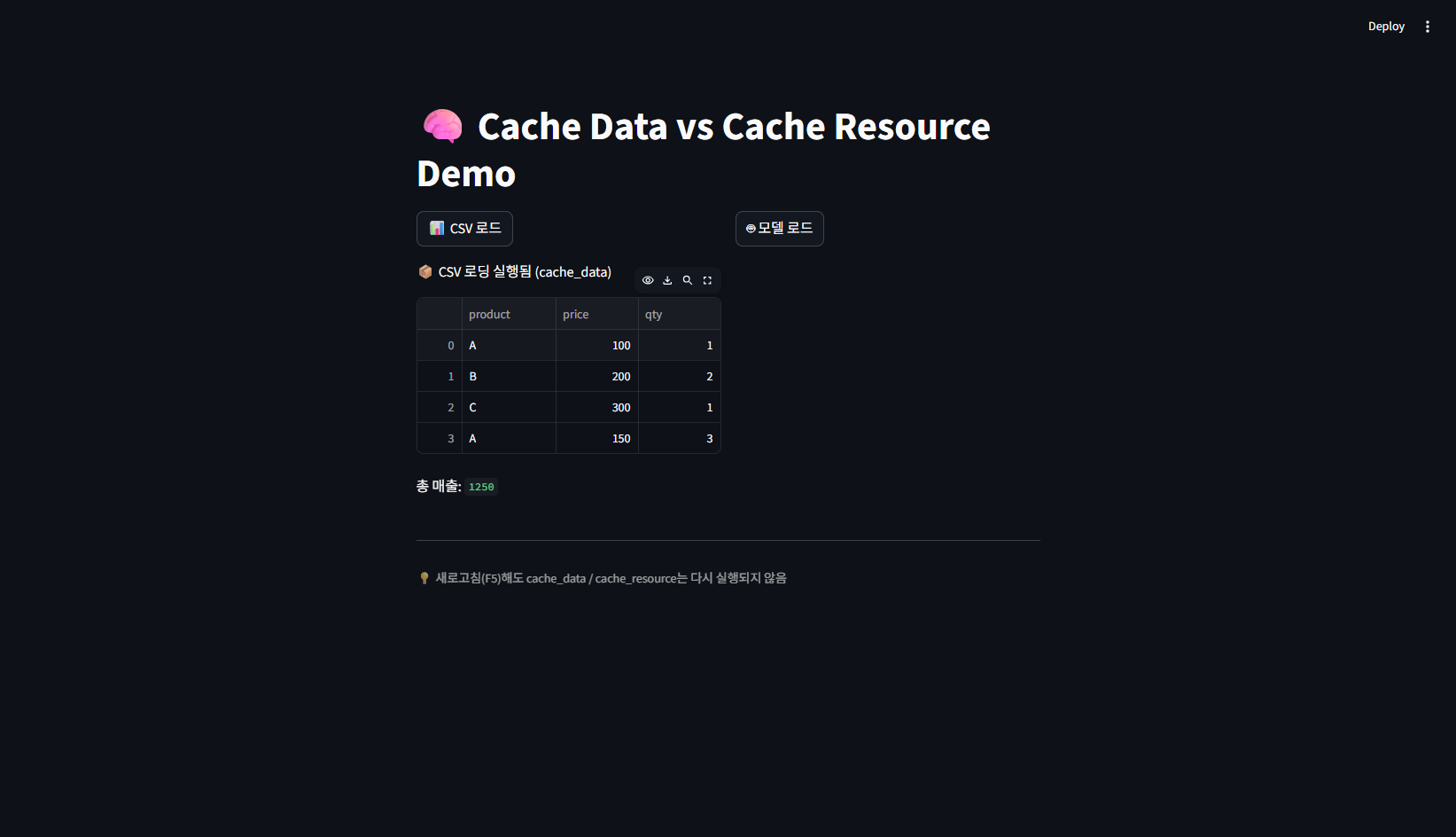

로그인 및 파일업로드 예제를 시작해보자.
IMPORT.
from pathlib import Path 안전한 파일경로 처리를 위한 표준 라이브러리

import matplotlib.pyplot as plt  그래프 생성
import pandas as pd CSV읽기, 통계계산, 데이터프레임
import streamlit as st 웹화면 구성 라이브러리
프로젝트 루트 BASE_DIR = Path(__file__).resolve().parent.parent
BASE_DIR = Path(__file__).resolve().parent.parent
print('BASE_DIR: ', BASE_DIR)

USER_CSV_PATH = BASE_DIR / "data" / "users.csv"
page set
st.set_page_config(
    layout="wide",
    page_icon="📊",
    page_title="Streamlit Login",
    initial_sidebar_state="expanded",
)
반환값 없는 함수를 type hint를 사용해 적을 수 있다.
def init_session_state():
    return None
def init_session_state() -> None:
if 'logged_in' not in st.session_state:
st.session_state.logged_in = False
if 'user_email' not in st.session_state:
st.session_state.user_email = None
if 'user_name' not in st.session_state:
st.session_state.user_name = None
if 'show_login_error' not in st.session_state:
st.session_state.show_login_error = False
https://standout.tistory.com/1688
타입 힌트란? : return값을 Python이 알 수 없지만 실행될때 결정될것이라는것을 인지한다.
힌트. return값을 Puthon이 알 수 없지만 실행될때 결정될것이라는것을 인지했다 . data는 list처럼 쓰거나 결과는 dict일 가능성이 높다.라고 알려주는 셈def process(data: list) -> dict:! python은 강제로 이를
standout.tistory.com
issubset()은 집합(set)이 “다른 집합에 완전히 포함되는지” 확인하는 함수
A의 모든 원소가 B 안에 있으면 True
“A가 B의 부분집합이냐?”
astype()은 pandas에서 데이터 타입(자료형)을 강제로 변환하는 함수
@st.cache_data #csv 파일을 매번 새로 읽을 필요가 없음.
def load_users() ->pd.DataFrame:
    if not USER_CSV_PATH.exists():
        st.error(f'사용자 csv 파일이 없습니다 :', {USER_CSV_PATH})
        st.stop()

    user_df = pd.read_csv(USER_CSV_PATH)
    required_columns = {'email', 'password', 'name'}
    if not required_columns.issubset(user_df.columns):
        st.error(f'사용자 csv 파일의 열 이름이 맞지 않습니다 :', {required_columns})
        st.stop()

    user_df['email'] = user_df['email'].astype(str)
    user_df['password'] = user_df['password'].astype(str)
    user_df['name'] = user_df['name'].astype(str)
    return user_df
iloc는 pandas에서 “위치 기반(index position)으로 데이터를 선택하는 방식
matched 데이터프레임에서 0번째 행(row) 가져오기
df.iloc[0] 첫번째 행, df.iloc[1] 두번째 행
필터링 결과는 보통 여러개인데 특히 DataFrame. 하지만 한개만 쓰고싶을때는 여러개 중 첫번째, 유저중 1명만 필요할 경우, 첫번째 상품만 보여줄경우, UI에 한줄만 표시할 경우에 사용한다.
iloc를 안쓰면 DataFrame 전체가 나오고 UI나 로직에서 처리해야해 불편하다.
def check_login(email: str, password: str) -> tuple[bool, str]:
    users_df = load_users()

    email = email.strip()
    password = password.strip()

    matched = users_df[
        (users_df['email'] == email) &
        (users_df['password'] == password)
    ]

    if not matched.empty:
        return True, matched.iloc[0]['name']

    return False, ""
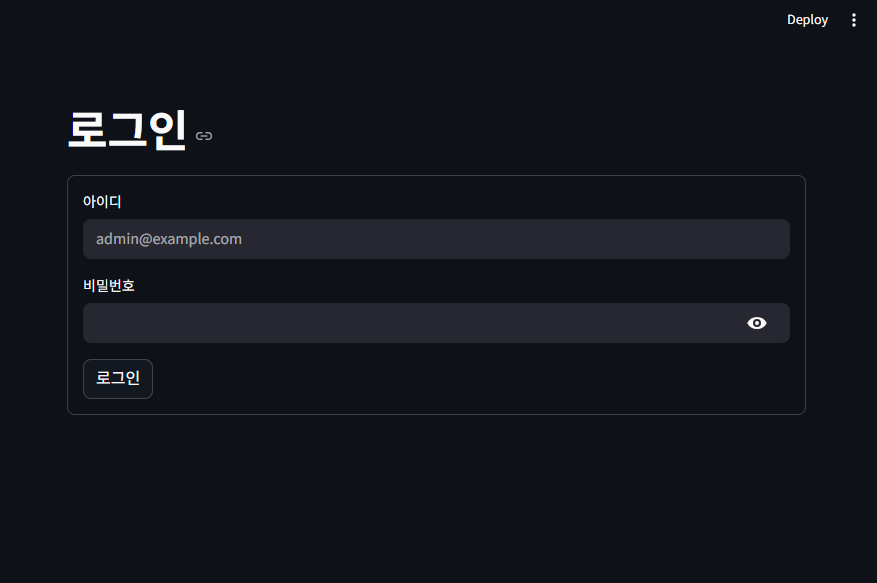
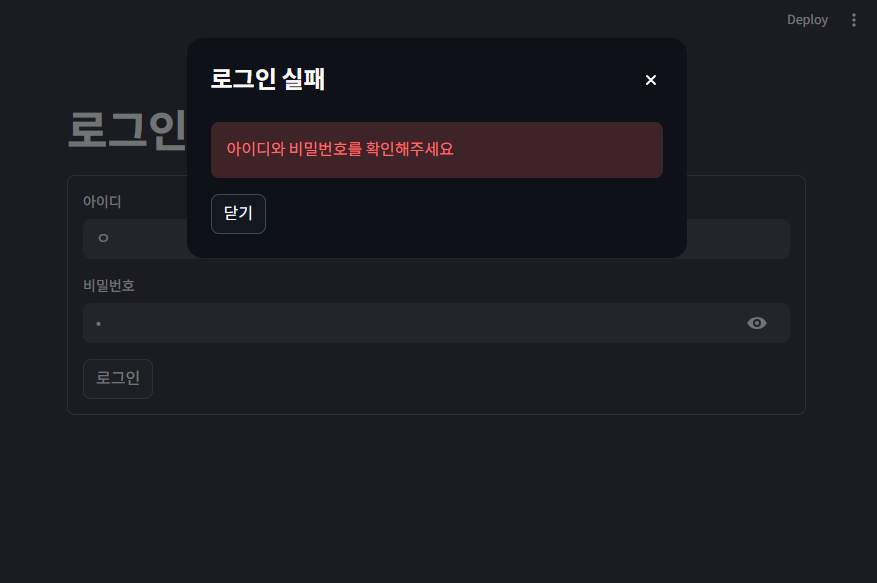
@st.dialog 팝업 창 안에서 실행된다. '로그인실패'는 팝업제목. 일반 페이지가 아니라 화면 위에 뜨는 창 령태 UI가 된다.
st.error() 빨간에러 메세지 출력
Streamlit는 페이지가 계속 새로 실행되는 구조라서 사용자가 '닫기'를 누르면 if st.button('닫기'): 세션에 상태값으로 저장한다. st.session_state.show_login_error = False
st.rerun() 앱을 즉시 다시 시작하라라는 명령
@st.dialog('로그인 실패')
def login_error_dialog() -> None:
    st.error('아이디와 비밀번호를 확인해주세요')
    if st.button('닫기'):
        st.session_state.show_login_error = False
        st.rerun()
with st.form form 만들기
submit되어 success, 혹은 success가 아닐때 명령
error일때 dialog를 표시하고 사용자 정보를 확장해서 보여줌
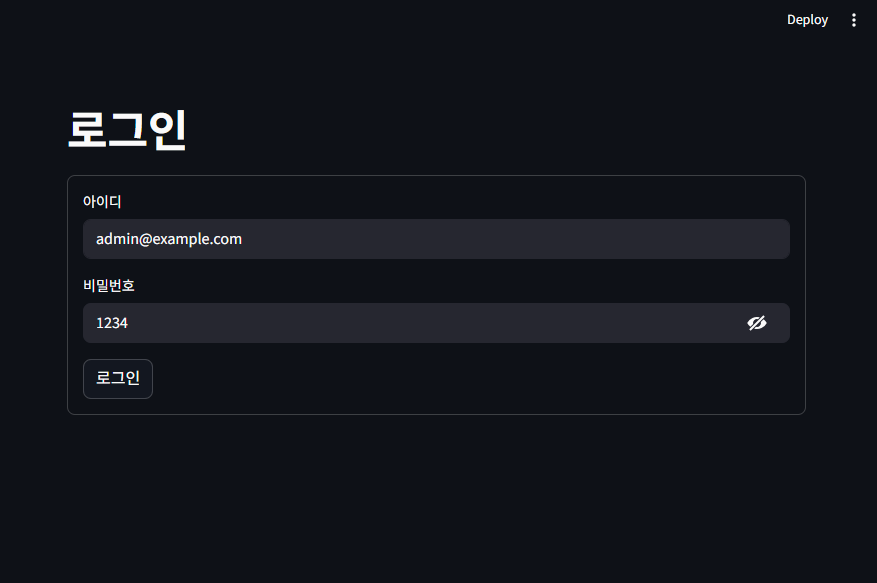
def show_login_page() -> None:
    st.title('로그인')

    with st.form('login_form'):
        email = st.text_input('아이디', placeholder='admin@example.com')
        password = st.text_input('비밀번호', type='password')
        submitted = st.form_submit_button('로그인')

    if submitted:
        success, user_name = check_login(email, password)

        if success:
            st.session_state.logged_in = True
            st.session_state.user_name = user_name
            st.session_state.user_email = email.strip()
            st.session_state.show_login_error = False
            st.rerun()
        else:
            st.session_state.show_login_error = True

    if st.session_state.show_login_error:
        login_error_dialog()
정상 로그인시 대시보드로, 아닐경우 로그인페이지로 보냄
def main() -> None:
    init_session_state()
    if st.session_state.logged_in:
        show_dashboard_page()
    else:
        show_login_page()
메인작성
if __name__ == '__main__':
    main()
만일 업로드한 csv 파일이 cp949로 저장되었을때는 달리 읽도록 함
def read_upload_csv(uploaded_file) -> pd.DataFrame:
    try:
        return pd.read_csv(uploaded_file)
    except UnicodeDecodeError:
        uploaded_file.seek(0)
        return pd.read_csv(uploaded_file, encoding='cp949')
    except Exception as e:
        st.error(f'업로드한 파일이 손상되었습니다. 이미지 파일만 업로드 할 수 있습니다.')
        st.stop()
재귀 호출 함수
Recursive Call Function
함수안에서 자신을 실행하는 함수
무한루프가 되지 않도록 종료조건을 반드시 기술해야하나 파이썬은 무한 루프에 빠지면 자동으로 에러를 발생시킴.
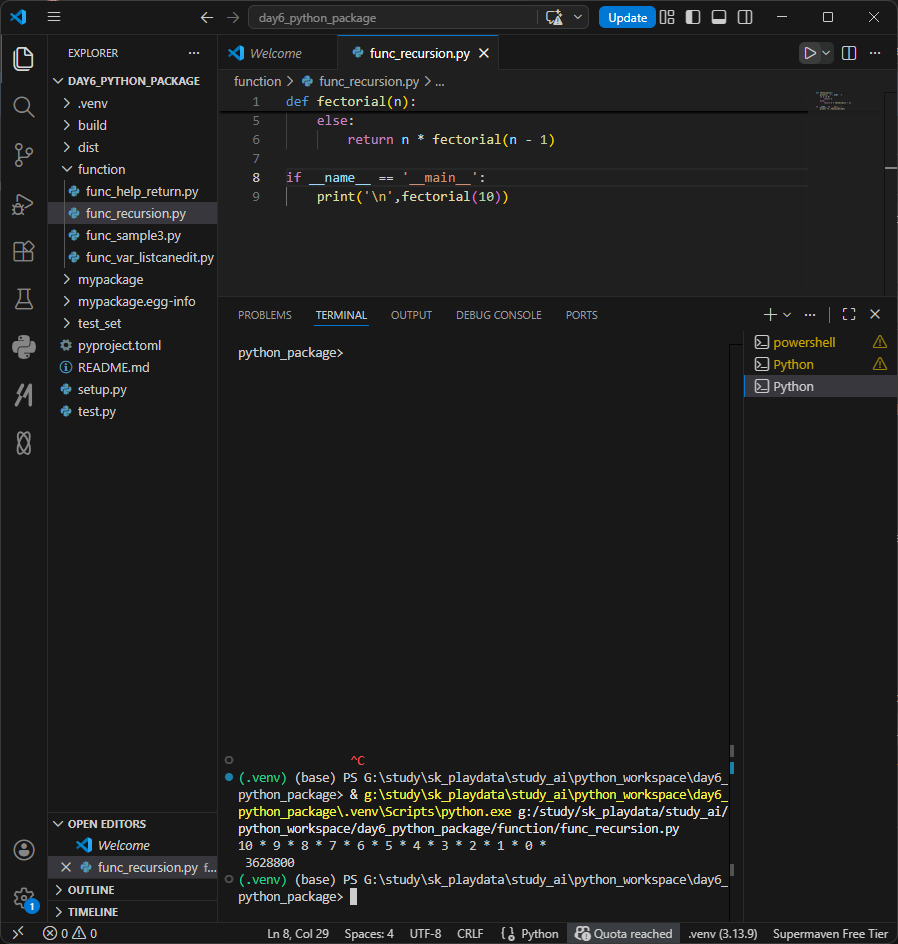
def fectorial(n):
    print(n, '*', end=' ')
    if n == 0:
        return 1
    else:
        return n * fectorial(n - 1)

if __name__ == '__main__':
    print('\n',fectorial(10))
https://standout.tistory.com/115
마트료시카, 재귀
재귀 recursion, 자기 자신을 참조하는 것 마트료시카 인형을 연상하면 좋다. https://ko.wikipedia.org/wiki/%EC%9E%AC%EA%B7%80_(%EC%BB%B4%ED%93%A8%ED%84%B0_%EA%B3%BC%ED%95%99) 재귀 (컴퓨터 과학) - 위키백과, 우리 모두의
standout.tistory.com
로그인 성공 후 화면
def show_dashboard_page() -> None:
    st.title('csv 데이터 분석')
    if not st.session_state.logged_in:
        st.stop()

    user_df = load_users()
    user = user_df[user_df['email'] == st.session_state.user_email]

    col1, col2 = st.columns([4, 1])
    with col1:
        st.write(f'{st.session_state.user_name}님, 안녕하세요.')
    with col2:
        if st.button('로그아웃'):
            st.session_state.logged_in = False
            st.session_state.user_email = None
            st.session_state.user_name = None
            st.session_state.show_login_error = False
            st.rerun()

    st.divider()
    uploaded_file = st.file_uploader('파일 업로드', type=['csv'], help='data/sample_sales.csv 파일을 업로드해주세요.')
    if uploaded_file is None:
        st.info('csv 파일을 업로드하면 테이블과 기본통계, 선, 막대그래프, 히스토그램이 출력됩니다.')
        st.write('프로젝트예제 데이터파일 data/sample_sales.csv')
        return

    st.subheader('읽어온 데이터 테이블')
    df = read_upload_csv(uploaded_file)
    st.dataframe(df, use_container_width=True)

    st.subheader('기본 데이터 정보')
    col1, col2, col3 = st.columns([1, 1, 2])
    col1.metric('행 갯수', len(df))
    col2.metric('열 갯수', len(df.columns))
    col3.metric('결측치', int(df.isna().sum().sum()))

    st.subheader('통계요약')
    numeric_df = df.select_dtypes(include=['number'])
    if numeric_df.empty:
        st.write('숫자 형식의 데이터가 없습니다.')
        return
    st.dataframe(numeric_df.describe(), use_container_width=True)

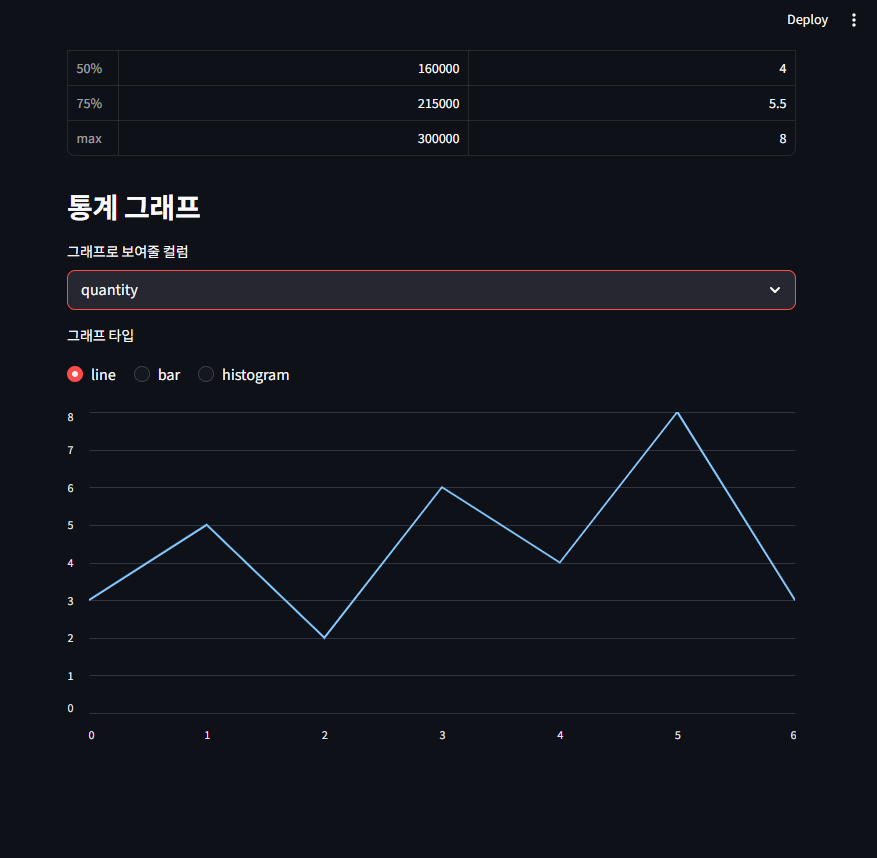
    st.subheader('통계 그래프')
    selected_columns = st.selectbox('그래프로 보여줄 컬럼', numeric_df.columns)
    chart_type = st.radio('그래프 타입', ['line', 'bar', 'histogram'], horizontal=True)
    if chart_type == 'line':
        st.line_chart(numeric_df[selected_columns])
    elif chart_type == 'bar':
        st.bar_chart(numeric_df[selected_columns])
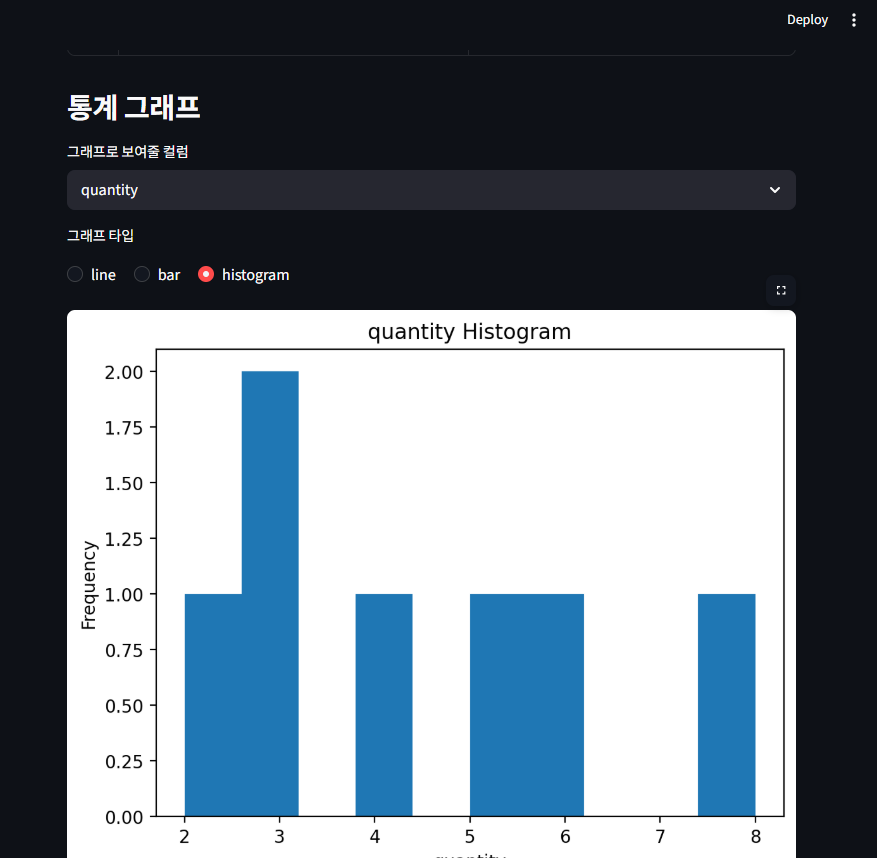
    elif chart_type == 'histogram':
        fig, ax = plt.subplots()
        ax.hist(numeric_df[selected_columns].dropna(), bins=10)
        ax.set_title(f'{selected_columns} Histogram')
        ax.set_xlabel(selected_columns)
        ax.set_ylabel('Frequency')
        st.pyplot(fig)


    with col1:
        st.write('테이블 전체 개수')
        st.write(df.shape[0])
    with col2:
        st.write('테이블 전체 컬럼 개수')
        st.write(df.shape[1])
    with col3:
        st.write('테이블 전체 데이터 개수')
        st.write(df.shape[0] * df.shape[1])
코드를 뜯어가며 이해해보자.
if st.button('로그아웃'):버튼을 눌렀을때 st.session_state에 있는 데이터를 초기화하고 rerun 한다.
def show_dashboard_page() -> None:
    st.title('csv 데이터 분석')
    if not st.session_state.logged_in:
        st.stop()

    user_df = load_users()
    user = user_df[user_df['email'] == st.session_state.user_email]

    col1, col2 = st.columns([4, 1])
    with col1:
        st.write(f'{st.session_state.user_name}님, 안녕하세요.')
    with col2:
        if st.button('로그아웃'):
            st.session_state.logged_in = False
            st.session_state.user_email = None
            st.session_state.user_name = None
            st.session_state.show_login_error = False
            st.rerun()
st.file_uploader('안내문구', type=['확장자'], help='안내문구') 파일을 받는다.
if uploaded_file is None: 파일을 업로드하지않았을때 안내한다.
   st.divider()
    uploaded_file = st.file_uploader('파일 업로드', type=['csv'], help='data/sample_sales.csv 파일을 업로드해주세요.')
    if uploaded_file is None:
        st.info('csv 파일을 업로드하면 테이블과 기본통계, 선, 막대그래프, 히스토그램이 출력됩니다.')
        st.write('프로젝트예제 데이터파일 data/sample_sales.csv')
        return
함수 read_upload_csv()를 호출하여 pd.read_csv()한 데이터를 use_container_width=True 가로폭에 맞춰 출력한다
    st.subheader('읽어온 데이터 테이블')
    df = read_upload_csv(uploaded_file)
    st.dataframe(df, use_container_width=True)
.
len(df)로 데이터의 행 갯수, len(df.columns)열 갯수, int(df.isna().sum().sum() 결측치를 표시한다.
    st.subheader('기본 데이터 정보')
    col1, col2, col3 = st.columns([1, 1, 2])
    col1.metric('행 갯수', len(df))
    col2.metric('열 갯수', len(df.columns))
    col3.metric('결측치', int(df.isna().sum().sum()))
df.select_dtypes(include=['number']) 숫자를 뽑아 숫자형식이 없을경우 return.
numeric_df.describe() 통계하여 use_container_width=True 가로폭에 맞춰 출력하고 이를 st.dataframe, 데이터표로 보여준다
    st.subheader('통계요약')
    numeric_df = df.select_dtypes(include=['number'])
    if numeric_df.empty:
        st.write('숫자 형식의 데이터가 없습니다.')
        return
    st.dataframe(numeric_df.describe(), use_container_width=True)
numeric_df.columns을 추출해 st.selectbox()를 넣고
chart_type을 st.radio()로 'line', 'bar', 'histogram'선택할 수 있게한다.
각 if chart_type == 타입에 따라 selected_columns값리스트를 st.line_chart(numeric_df[selected_columns]) 라인차트, st.bar_chart(numeric_df[selected_columns]) 바차트로 띄운다.
elif chart_type == 'histogram': 히스토그램일경우 plt.subplots()를 만들어,
* subplots()란 캔버스에 axes 그래프를 그리는 영역을 동시에 만드는 함수다. figrk Figure전체그림판, ax가 실제 그래프 그리는 공간이라면 이 둘을 묶어 subplots()를 호출하는것.
numeric_df[selected_columns] 선택한 컬럼들 리스트에서 .dropna()결측치를 제거한다. 즉 NaN을 제거한다는것. 이후 ax.hist() 히스토그램을 그린다. 데이터가 어느 구간에 많이 몰려있는지를 볼 수 있다. 이때 구간은 bins=10 높아질수록 더욱 세밀해지고 낮아질수록 더 뭉뚱한 그림이 나온다.
title, x y label을 정한 뒤 이 fig 그린 캔버스, 즉 그래프를 st.pyplot() 웹 스트림릿 화면서 보여준다.
  st.subheader('통계 그래프')
    selected_columns = st.selectbox('그래프로 보여줄 컬럼', numeric_df.columns)
    chart_type = st.radio('그래프 타입', ['line', 'bar', 'histogram'], horizontal=True)
    if chart_type == 'line':
        st.line_chart(numeric_df[selected_columns])
    elif chart_type == 'bar':
        st.bar_chart(numeric_df[selected_columns])
    elif chart_type == 'histogram':
        fig, ax = plt.subplots()
        ax.hist(numeric_df[selected_columns].dropna(), bins=10)
        ax.set_title(f'{selected_columns} Histogram')
        ax.set_xlabel(selected_columns)
        ax.set_ylabel('Frequency')
        st.pyplot(fig)
dataframe를 연상할때 표를 떠올린다. 이때 shape()은 또 shape[0], shape[1]은 가로 세로, 행과 열로 기억한다.
마찬가지로 사각형 넓이 구하는 공식을 대입한다면 shape[0], shape[1]의 곱은 전체 데이터 갯수가 된다.
   with col1:
        st.write('테이블 전체 개수')
        st.write(df.shape[0])
    with col2:
        st.write('테이블 전체 컬럼 개수')
        st.write(df.shape[1])
    with col3:
        st.write('테이블 전체 데이터 개수')
        st.write(df.shape[0] * df.shape[1])
로그인 성공 실패 테스트

파일 업로드 테스트
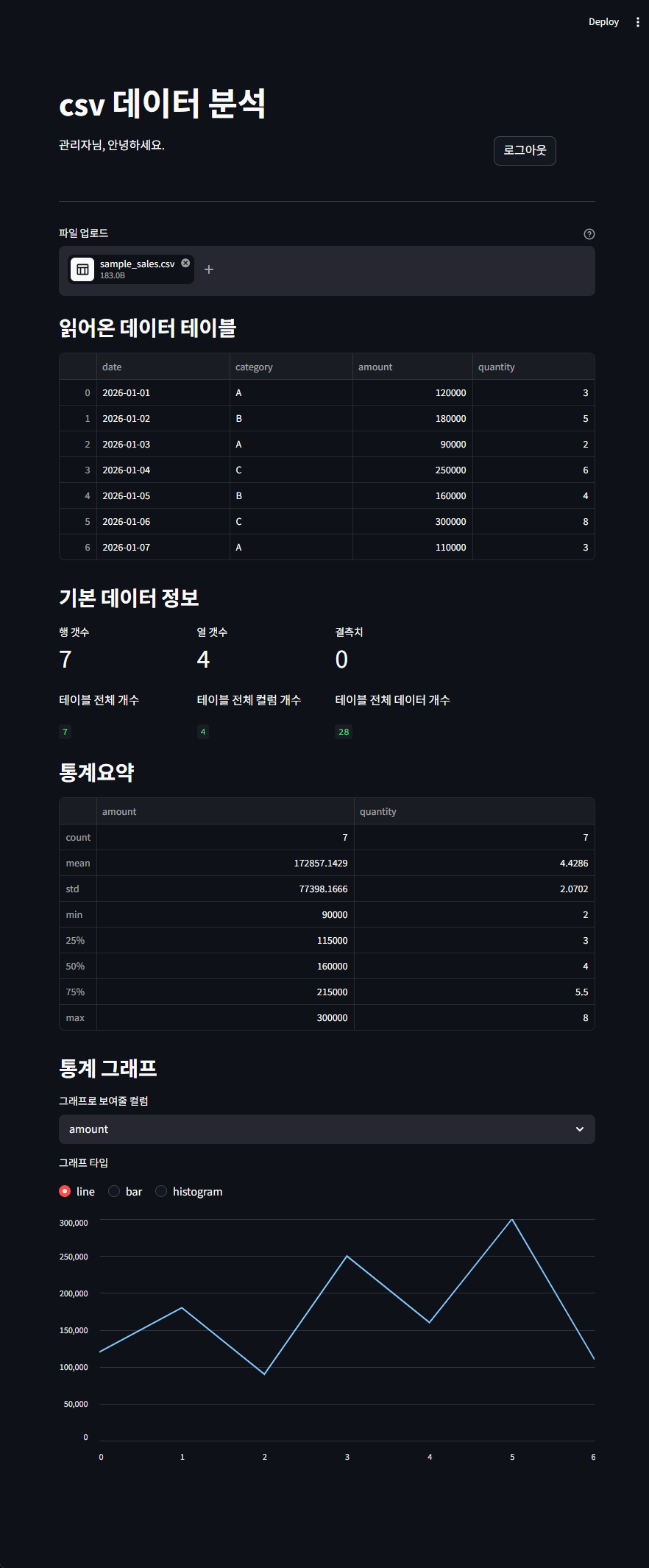


'Personal > SK 네트웍스 AI 캠프' 카테고리의 다른 글
| SK 네트웍스 AI 캠프 - 1_프로그래밍 데이터 기초 - Day8_MySQL 서버 구축 및 운영 관리 (0) | 2026.05.11 |
|---|---|
| [SK네트웍스 Family AI 캠프] 32기 2주차 회고: Day4 ~ Day7 (0) | 2026.05.11 |
| SK 네트웍스 AI 캠프 - 1_프로그래밍 데이터 기초 - Day6_파이썬 모듈과 패키지 (0) | 2026.05.07 |
| SK 네트웍스 AI 캠프 - 1_프로그래밍 데이터 기초 - Day5_파이썬_객체지향 프로그래밍_OOP (0) | 2026.05.06 |
| SK 네트웍스 AI 캠프 - 1_프로그래밍 데이터 기초 - Day4_파일입출력_예외처리 (0) | 2026.05.04 |


